Understand Your Audience… Then Craft and Manage Your Message

Audience Demographics and Tools for Managing/Analyzing Your Content (Messages)

Demographics of Key Social Networking Platforms – Pew Research Center
www.pewinternet.org/2015/01/09/demographics-of-key-social-networking-platforms-2/

WIU Target Audience

If you have stretched/limited resources, focus on platforms that have your target demographics. For University Relations, we target to the “macro-level.”

WIU (managed by University Relations) has a presence on other accounts: Pinterest, YouTube, Google+, Storify, WordPress

For niche areas, such as a small, rural community, Pinterest would likely be a tool to use  more heavily.

Use the site’s “analytics,” when possible, to examine the reach and engagement-level of your messages:
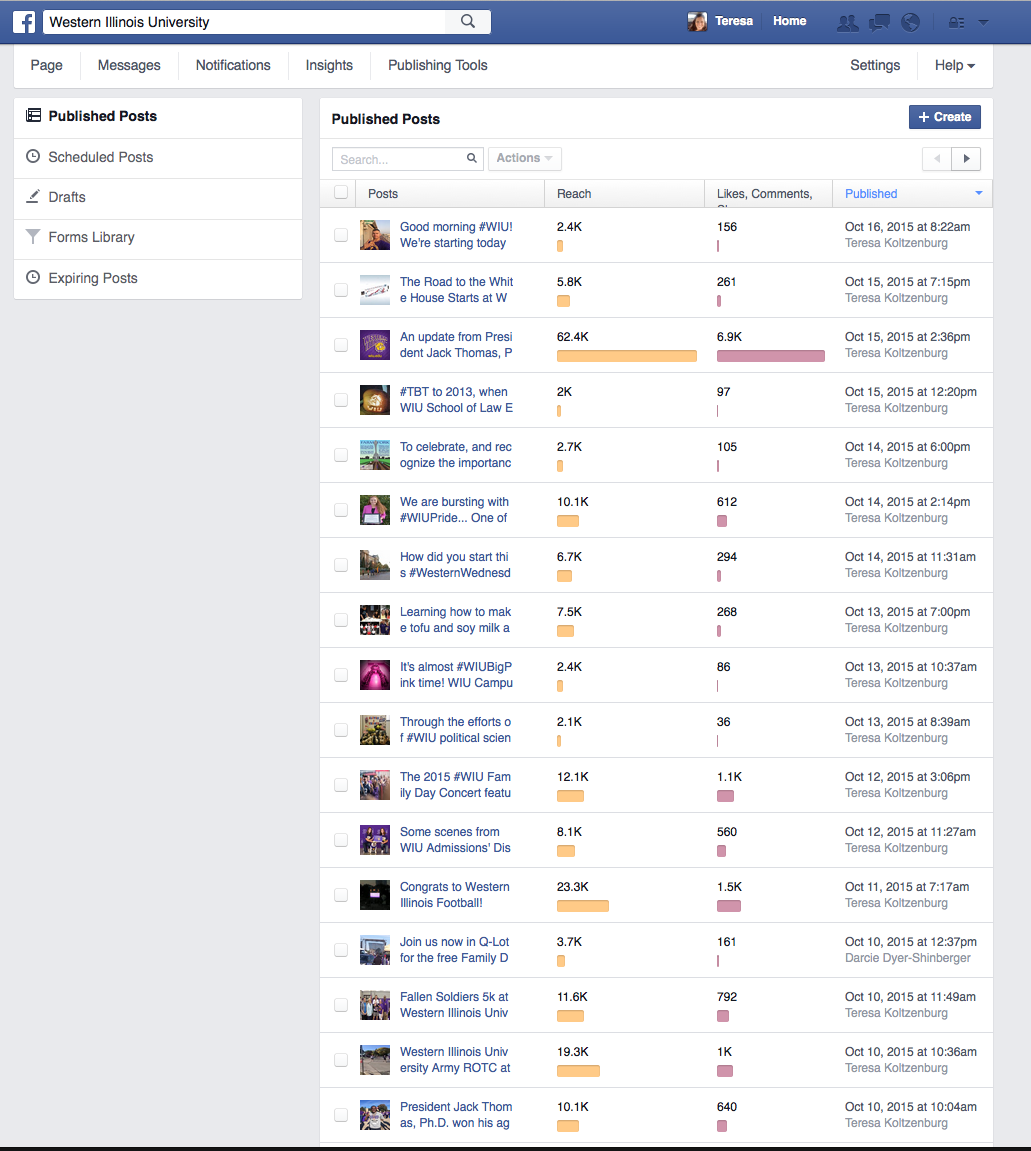
WIU FB Published Posts

WIU FB Published Posts

As well as to discern who your users are:
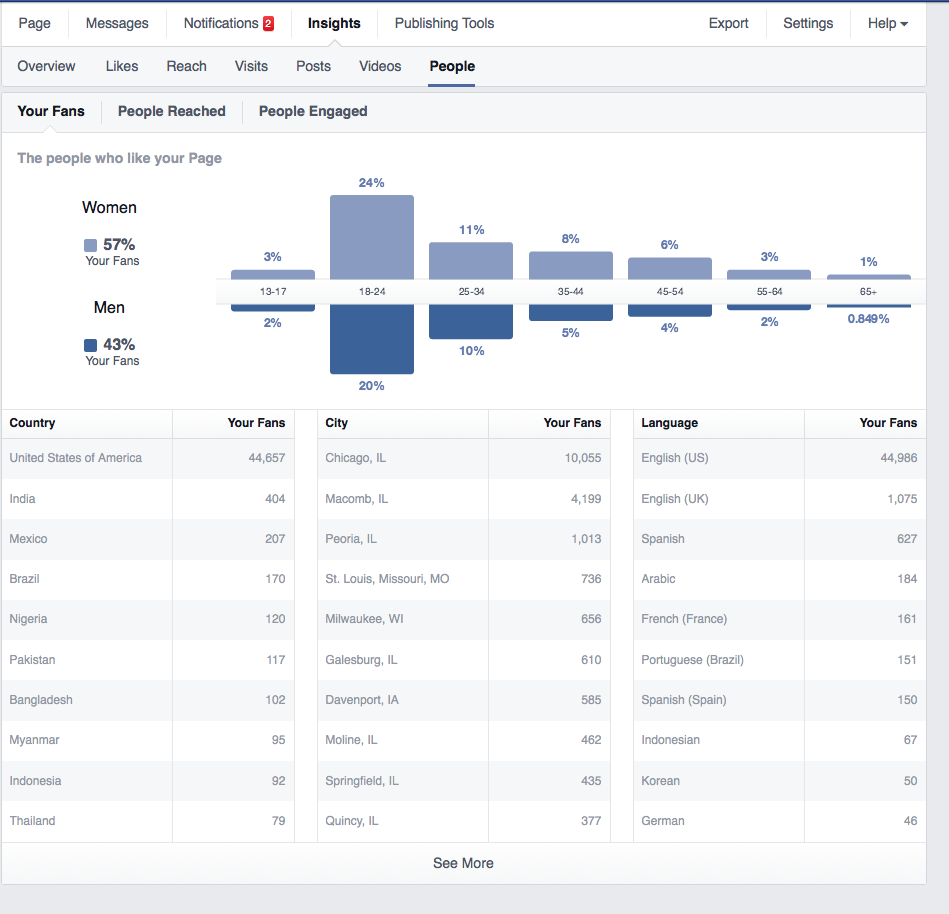
WIU FB User Demo

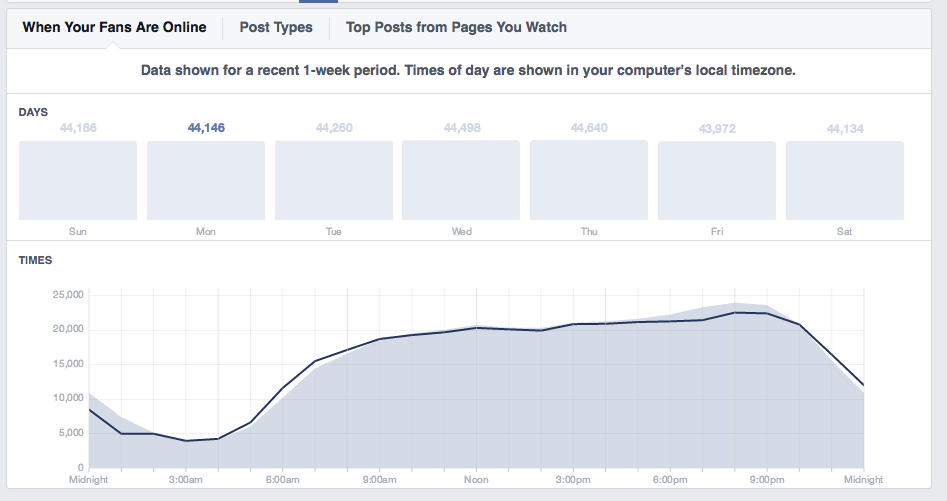
When your fans are online:

WIU FB Fans Online

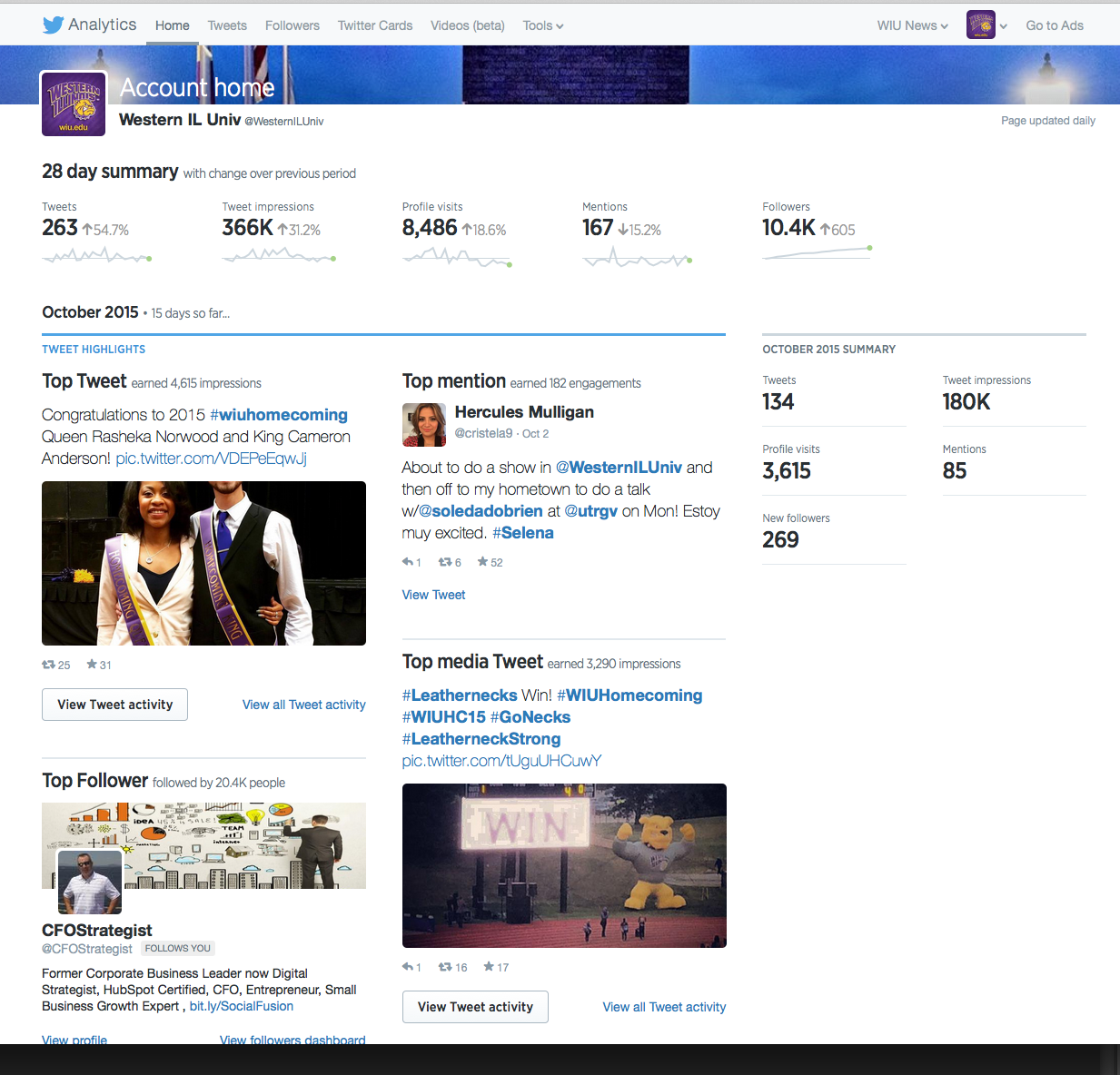
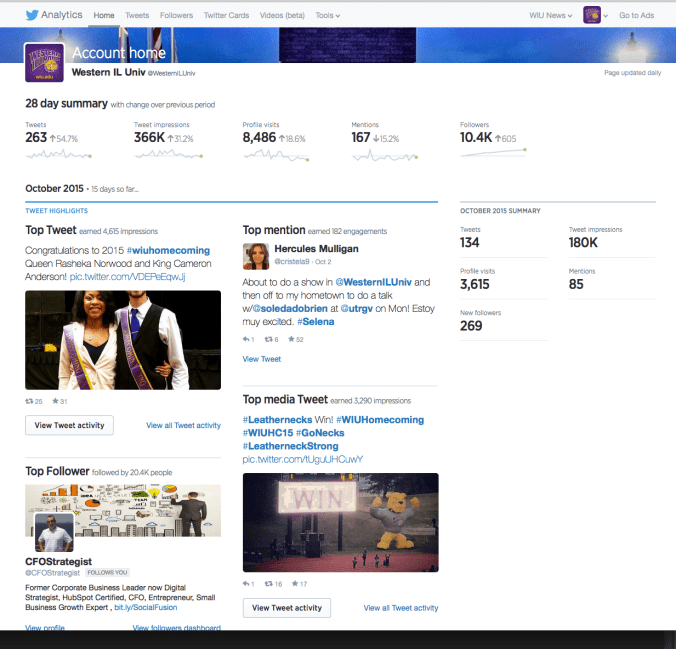
Twitter also has analytics you can use…WIU Twitter Analytics
Crafting Your Messages

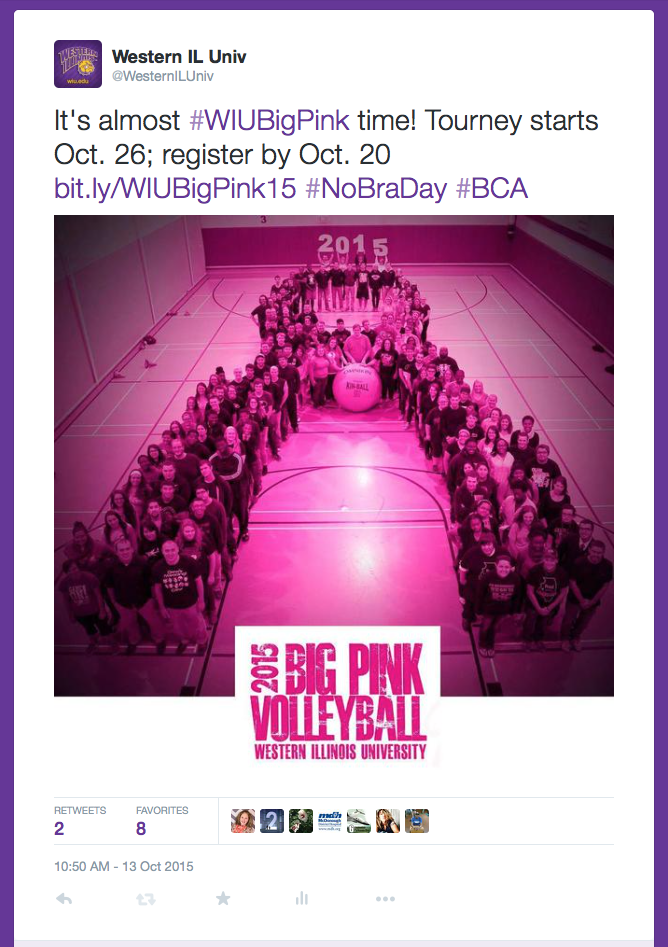
Use well-composed and in focus photos! (If you don’t have that, a quick work-around is to use an Instagram filter to give an image a more dramatic effect, and then use the Instagram photo on your other social media sites.)

Well-Composed Photos

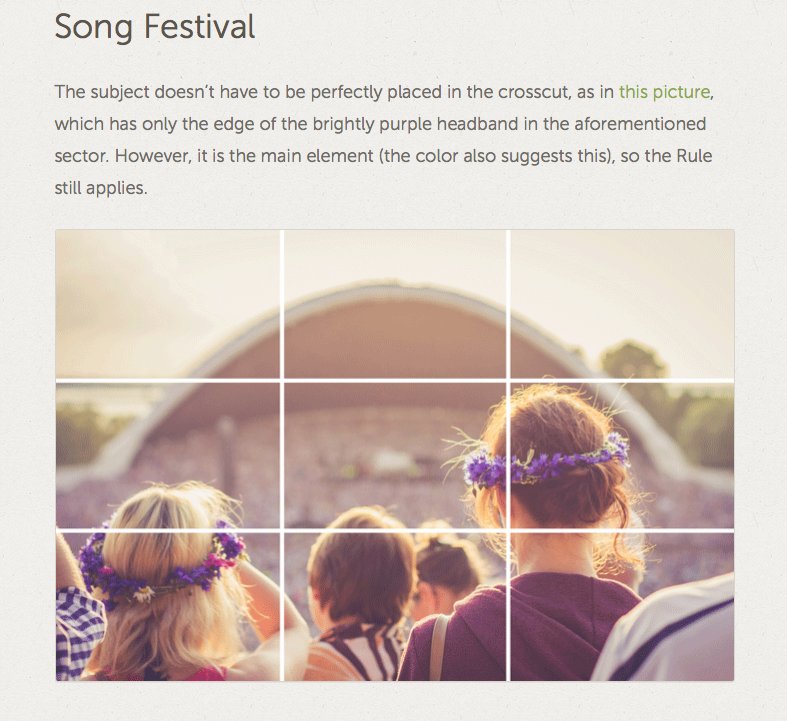
Photography: 15 Great Examples of the Rule of Thirds in Action
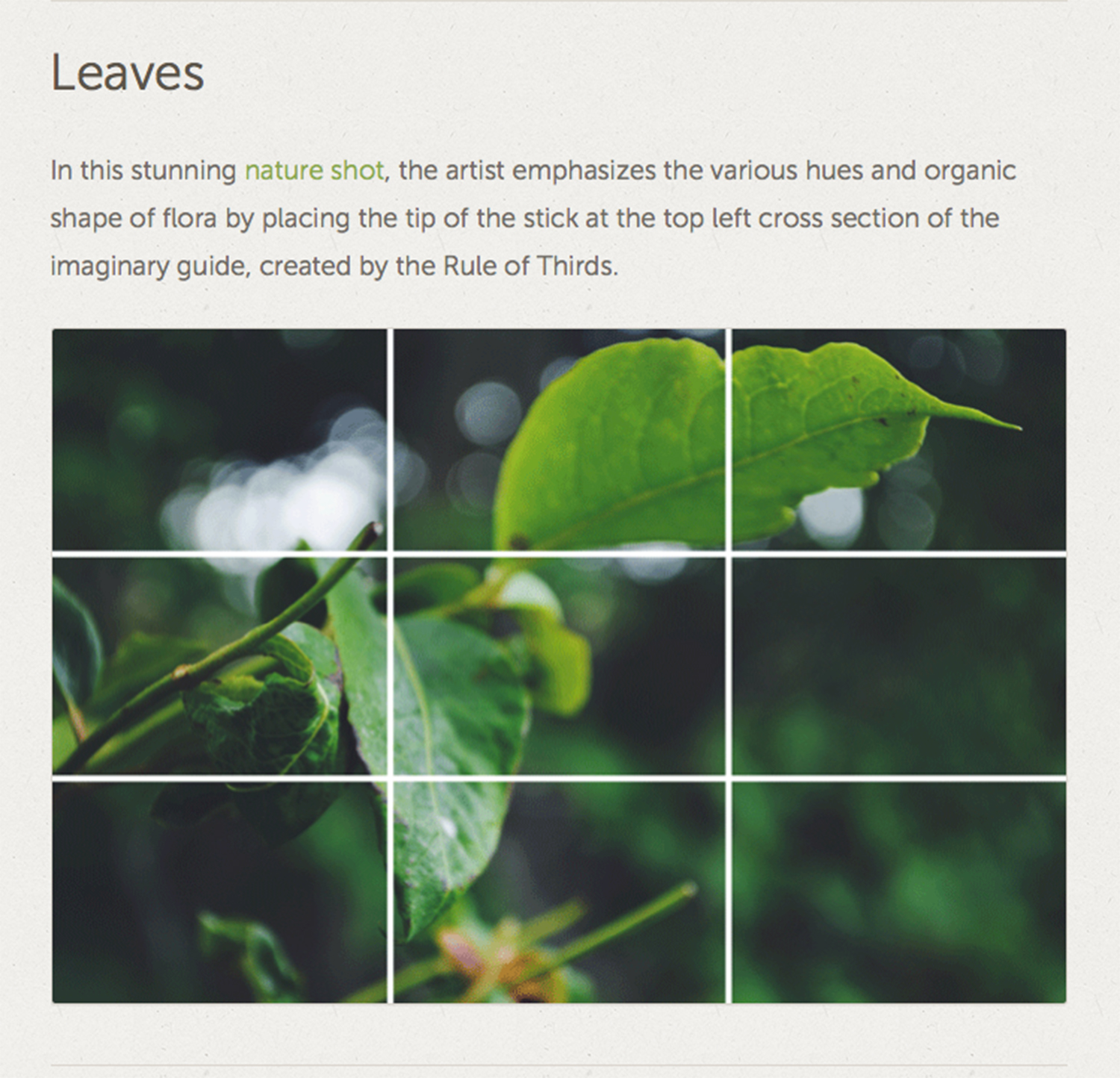
Rule of Thirds: Leaves

Rule of Thirds Example

And if you post links, you can still use photos/graphics…
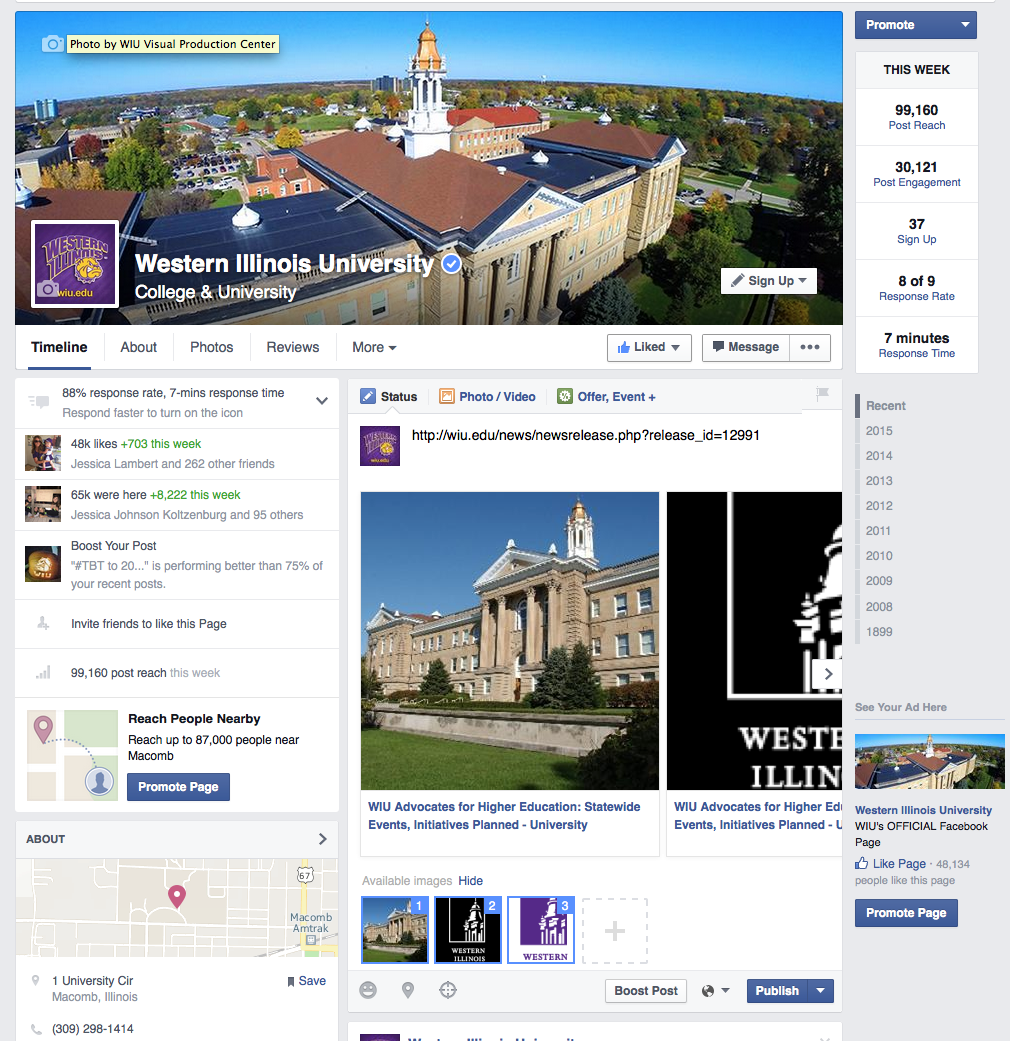
FB Link Posts


Use Video

(Video was produced by WIU student Jeff Marta.)

Connect Networks for Some Level of Automation

For time management and efficiency reasons…

Facebook to Twitter
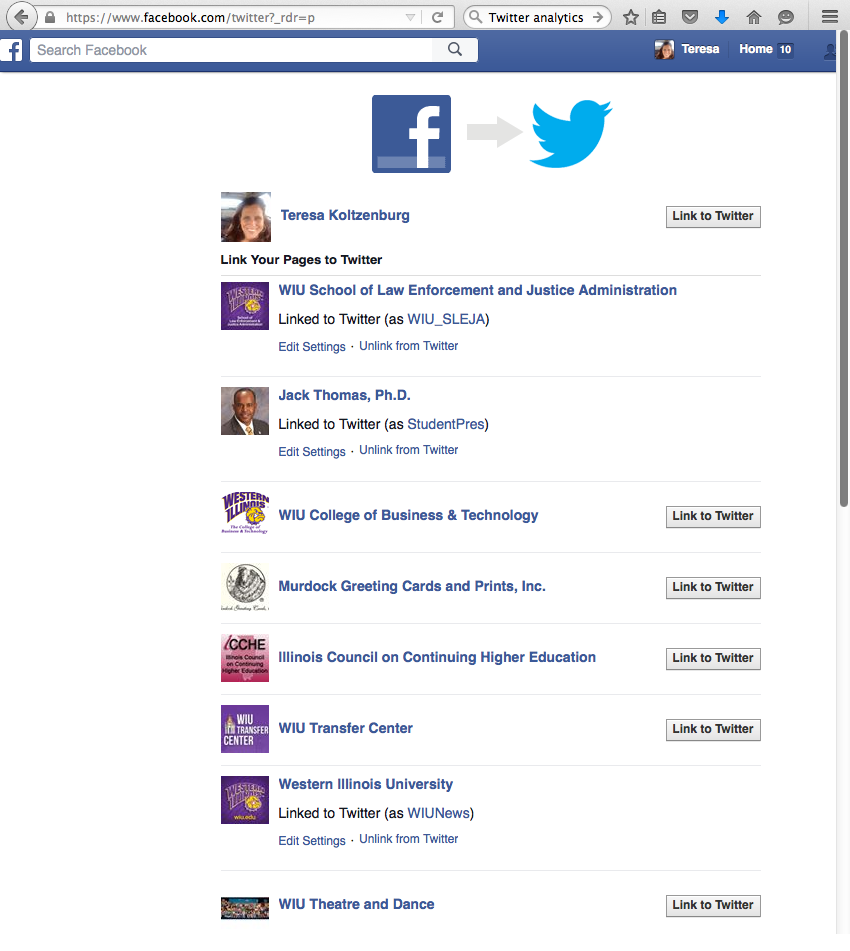
Link FB Page to Twitter

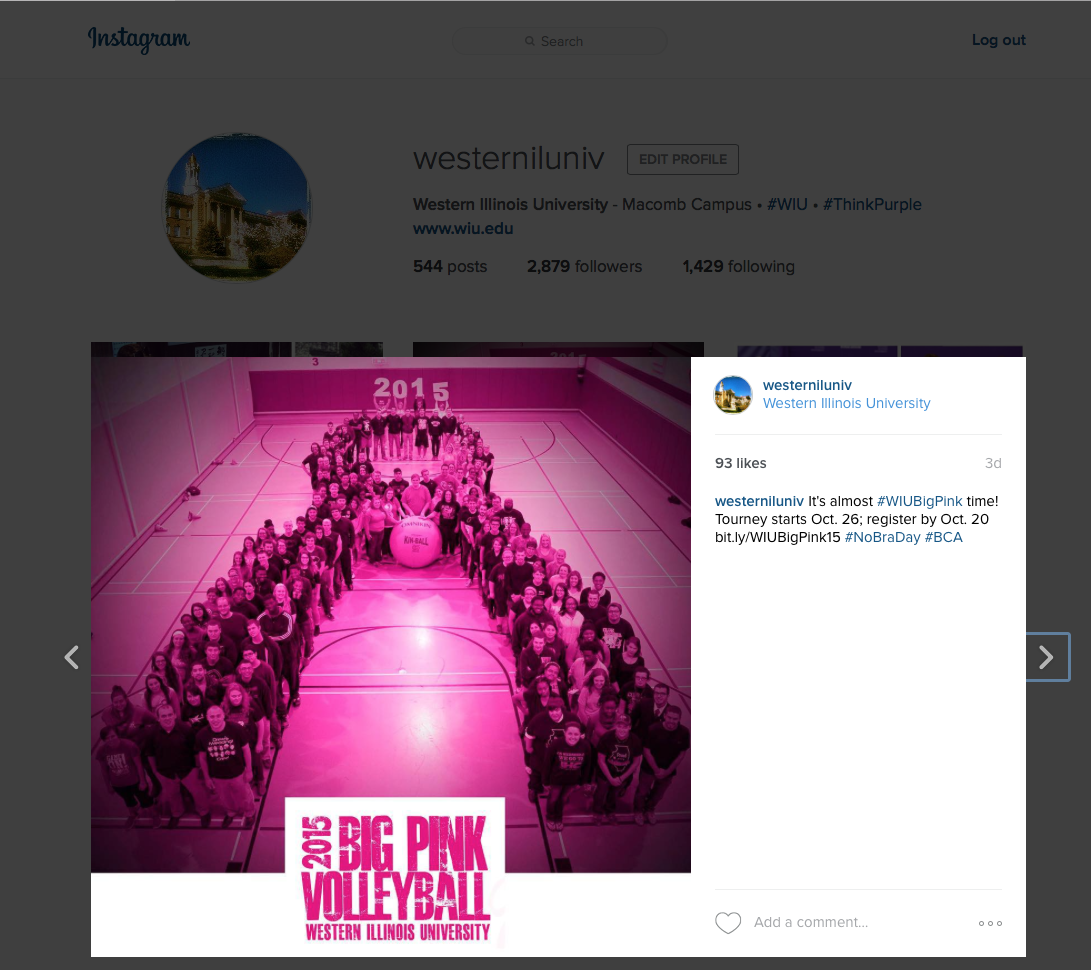
Use IFTTT (If That, Then This)… All of the photos we upload to WIU’s Instagram, go to Twitter.
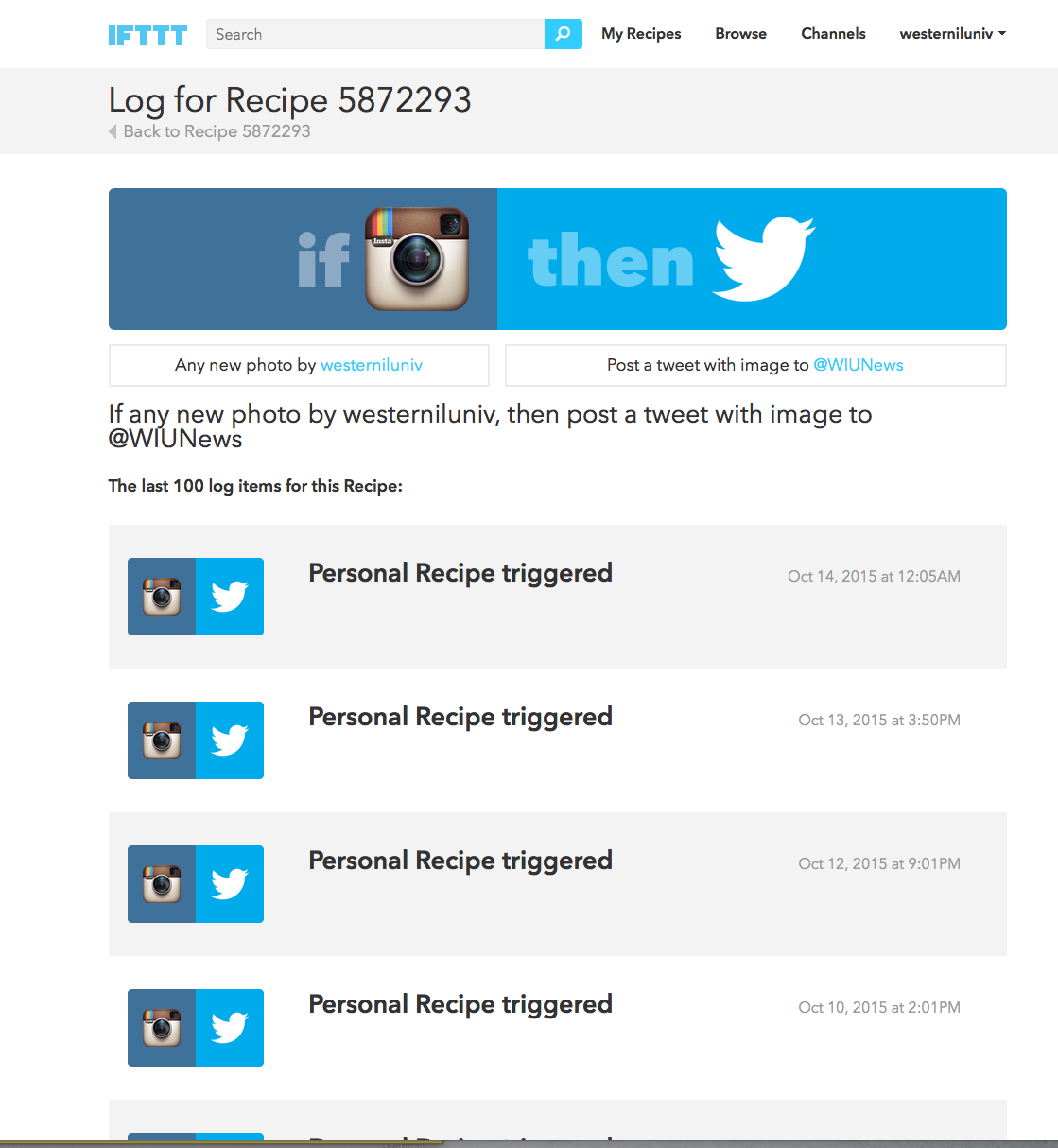
WIU Instagram to Twitter

For example: Instagram…

Instagram to Twitter

…to Twitter

Tweet (from Instagram)

Final Tips

  1. Keep feeding your social media networks with content that appeals to your audience. Use photos, video, and links to tell your organization’s story. Some content items will get strong user engagement, while others will not. That’s OKAY!
  2. Be responsive and engage with your followers by answering their questions, liking their comments (if applicable), etc.
  3. NEVER get defensive or into a debate with a follower. If someone is posting negative comments, provide answers with fact-based information (links to your organization’s website, news releases, etc.)
  4. Follow sites like Mashable and Buzzfeed. Pay attention to pop culture. Watch trending topics on Twitter. Tie timely events into your content.
  5. Use memes.Use Memes
  6. Keep on keepin’ on! Managing social media for an organization can be a trying experience… but it can also be rewarding. Know there is always going to be someone who criticizes… Best case scenario is to use that critique to improve your content, your processes, your brand, your community, etc.

Twitter Training, March 2015

WIU News - March 23, 2015, Tweet

An example of a Tweet posted by @WIUNews March 23, 2015

Thanks for all those who attended the March 26 session. If you need individual assistance, please don’t hesitate to contact me in University Relations.

As promised, here are the links to the information I presented. Feel free to download the slides (via Slideshare) below. For a bit of fun, I embedded the original “‘#Hashtag’ with Jimmy Fallon & Justin Timberlake (Late Night with Jimmy Fallon)” skit below 🙂


“‘#Hashtag’ with Jimmy Fallon & Justin Timberlake (Late Night with Jimmy Fallon”

Privacy and Social Media

Below are some resources that will help you manage your privacy settings on your social networks.

Facebook

According to Facebook, its “timeline” layout, enables you to “Control who sees your stuff… Only the people you originally shared a post with can see it on your timeline. If you want, you can go back and change who sees a post, delete it or just hide it from your timeline.” Nevertheless, Facebook’s timeline layout has caused several techie/social media types to write about privacy. Here are some helpful articles that show you how to set the privacy on your Facebook Timeline.

“Prep for Facebook’s Timeline Layout: 6 Must-Do Privacy Tweaks” by Ian Paul, PCWorld

Steps
(Visit the PCWorld article above for the full article and specific instructions.)

  1. Get Timeline
  2. Hide Old Posts
    If you want to get rid of an old status update, photo, article link or like, go to the post on Timeline and hover over its top right corner. Click the pencil icon and select “Hide from Timeline.”
  3. Check the Log
    If you want to keep a post on your Timeline, but don’t want specific people to see it you can change an individual post’s settings using your Activity Log. Click on “Activity Log” underneath your Timeline cover photo to see a single page listing of all your Facebook activity organized by date.
  4. Feature Old Posts
    If you have a post you’d like to feature, such as a photo of a wedding or graduation, hover over the top right corner of the post again. This time, instead of the pencil, click the star icon and the post will stretch out to fill the width of Timeline’s main column.
  5. Set Your Cover Photo
    The top of your profile will now include a large photo called the cover photo that will be one of the first things people landing on your profile will see. You get to choose which photo you’d like to add there so take a few minutes to figure out what you’d like to put there. Keep in mind your cover photo is not private, so anyone on Facebook could potentially see it.
  6. View as Public
    After you’ve edited your Timeline, you may want to check what others will be able to see on your revamped profile. To do this click on the cog icon underneath your cover photo and select “View As…” from the drop down menu. This will automatically show you how your profile looks to the public and your subscribers if you have any.

More Recent Articles about Facebook’s Timeline and Privacy

“Facebook Timeline Looms: What You Need to Know,” by Christina DesMarais, PCWorld

“Facebook Timeline Privacy Tips: Lockdown Your Profile” by Sarah Jacobsson Purewal, PCWorld

“Facebook’s Timeline Is Going To Force You To Do Privacy Housekeeping” by Kashmir Hill, Forbes Staff

“Introducing New Apps for Timeline,” by by Carl Sjogreen, Facebook Blog

“Facebook’s Frictionless App Frenzy Will Make Your Life More Open” by Jason Gilbert, Huffington Post


Twitter and Protected Tweets

Twitter Help Center | About Public and Protected Tweets
(support.twitter.com/articles/14016)

When you sign up for Twitter, you have the option of keeping your Tweets public (the default account setting) or protecting your Tweets.

  • Accounts with public Tweets have profile pages that are visible to everyone.
  • Accounts with protected Tweets require manual approval of each and every person who may view that account’s Tweets. Only approved followers can view Tweets made on these accounts.

Google and Google+

Last week (Jan. 24), Google announced a new privacy policy and terms of service that take effect March 1. The Washington Post article, “Google tracks consumers’ online activities across products, and users can’t opt out,” provides an overview of Google products that will be affected by the policy change.

Nevertheless, Google, via its new policy, is saying that is still wants to “give users meaningful choices to protect their privacy.” You can view the new privacy policy at www.google.com/intl/en/policies/privacy/preview/.

While it’s a few months old (from July 2011), PCWorld’s Elsa Wenzel covers how to set Google+ privacy settings (stuff you share) via her video post at www.pcworld.com/article/235803/how_to_set_google_privacy_settings.html.

Your Department’s Facebook Page

1: Use the appropriate platform on Facebook

A Facebook Profile is different from a Facebook Page, which are both different than Facebook Groups

“What is a Facebook Page?”

(http://www.facebook.com/help/?faq=174987089221178)

“Pages are for organizations, businesses, celebrities, and bands to broadcast great information in an official, public manner to people who choose to connect with them. Similar to profiles, Pages can be enhanced with applications that help the entity communicate and engage with their audiences, and capture new audiences virally through friend recommendations, News Feed stories, Facebook events, and beyond… .”

How are Pages different from personal profiles?

(http://www.facebook.com/help/?faq=217671661585622)

“Profiles represent individuals and must be held under an individual name, while Pages allow an organization, business, celebrity, or band to maintain a professional presence on Facebook. You may only create Facebook Pages to represent real organizations of which you are an authorized representative.

In addition, Pages are managed by admins who have personal Facebook profiles. Pages are not separate Facebook accounts and do not have separate login information from your profile. They are merely different entities on our site, similar to how Groups and Events function. Once you have set up a Page within your profile, you may add other admins to help you manage this Page. People who choose to connect to your Page won’t be able to see that you are the Page admin or have any access to your personal account.”

“How are Pages different from Groups? Which one should I create?” … see http://www.facebook.com/help/?faq=155275634539412


2: Starting and Managing a Facebook Page

    • Create a Page: http://www.facebook.com/pages/create.php
    • Posting/Uploading Images to the Wall: Status update limit = 420 characters; photo upload caption does not impose this character limit.
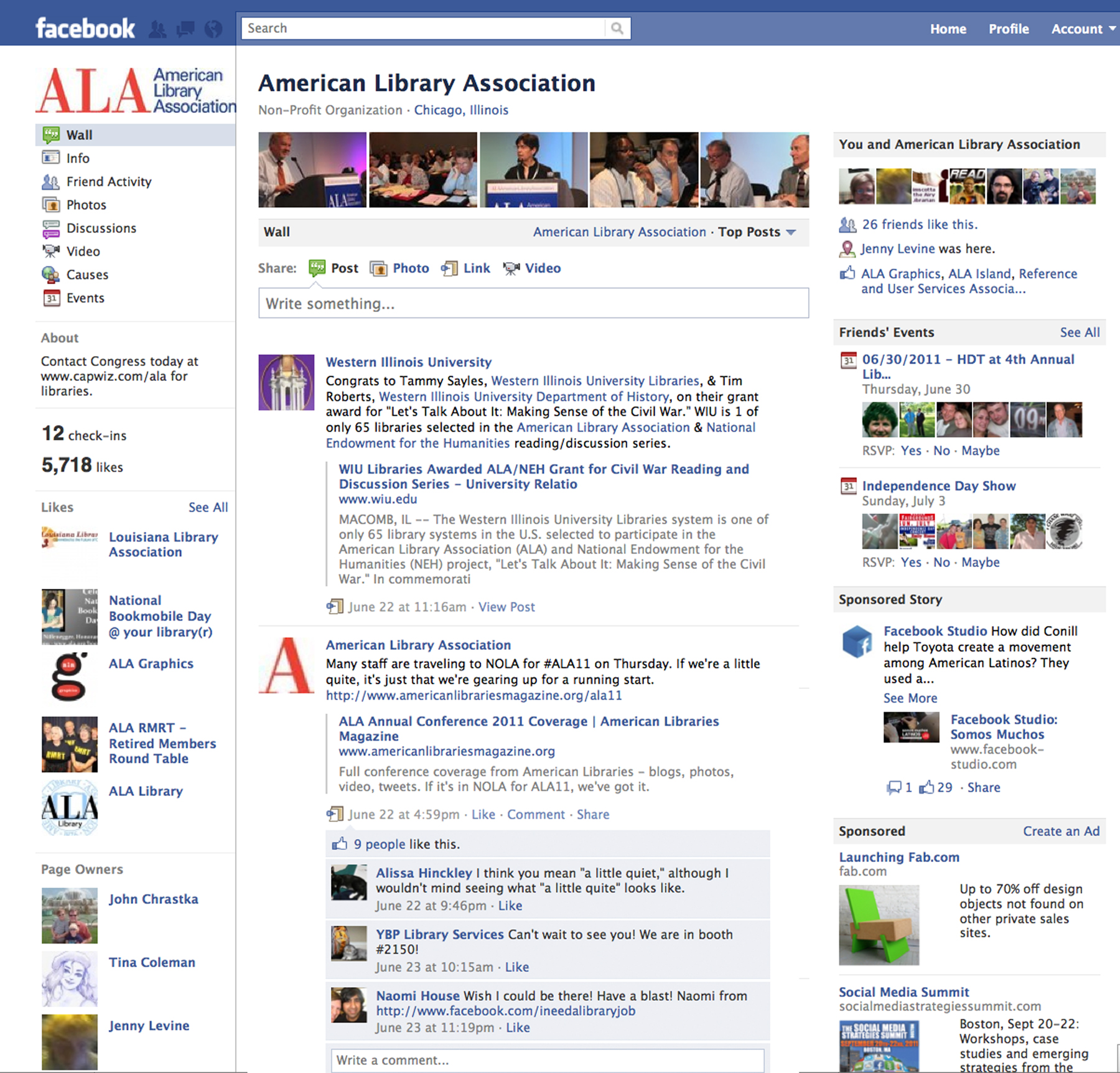
    • Use @ tags to show posts on other Facebook Pages (see the ALA FB page screenshot @ right).
    • Set a Custom URL (Username) for Your Page after 25 “Likes”: http://www.facebook.com/username/

3: Customization of Your Facebook Page

If you started your Facebook page prior to this spring, FBML, or Facebook Markup Language, is a Facebook-developed app you can utilize to customize your page.  (Around mid-March, Facebook started the process of deprecating FBML: see this post on the Wall Street Journal’s All Things D blog @ http://allthingsd.com/20110309/facebook-deprecates-fbml-tomorrow-aw-poor-fbml/ or Facebook’s info. about FBML @ http://developers.facebook.com/docs/reference/fbml/.)

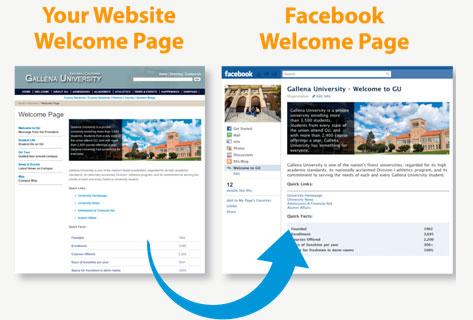
For the Western Illinois University page, we utilized FBML to customize a “Welcome” page ( see http://www.facebook.com/wiu.edu?sk=app_10531514314); however, if you’re still using FBML, you may want to start to “convert your Static FBML tabs to iFrames,” per a recent blog post on Hyperarts @ http://www.hyperarts.com/blog/facebook-static-fbml-phased-out/.

You may want to get your College’s or Department’s webmaster to help you, and if that’s not possible, then, there are DIY apps available, such as: Static HTML – Easy iFrame Tabs @ http://www.facebook.com/iFrameTab.

Or, if your department’s or office’s website is in WIU’s OmniUpdate CMS, there, theoretically, is a way to import your home page as custom content on your Facebook page via OU Social’s Facebook app:

OU Social™ Facebook App — A powerful, yet simple solution for updating your institution’s Facebook Page. An administrator simply installs the OU Social app within their Facebook account, and then selects which OU Campus–managed content to associate with it. Whenever associated content is updated in OU Campus, the same content is automatically and simultaneously updated on Facebook.

(See http://omniupdate.com/products/oucampus/#+features and scroll down to the bottom of the page.)

If your Department’s or College’s webmaster is not an admin of your page,  you may want to make him/her one and then provide him/her with the set up documentation, which is available @ http://support.omniupdate.com/documentation/ox/interface/setup/facebook/.


 4: Adhere to Terms of Use (or Guidelines or Permissions) for Social Media Icons in Your Promotional Materials


5: Social Media Listings and Community Guidelines


More questions? Contact me @ (309) 298-1993 or via email at TE-Koltzenburg@wiu.edu or friend me @ http://www.facebook.com/teresa.koltzenburg

Facebook Ads and Facebook Functions (for the User, a Group, and Organizations)

This presentation is related to some of the content I covered at the Downstate Regional  Conference for the Illinois Council on Continuing Higher Education (ICCHE) at the University of Illinois at Springfield, April 16, 2010. It provides a basic outline of the various functions of Facebook (user profiles, fan pages, and groups). It also provides some links to helpful resources on Facebook (i.e., the Facebook Blog and the Help Center) and shows the places in Facebook in which a user can set his/her privacy settings. There are, of course, other social media tools that organizations can utilize to reach an audience, but it’s hard to refute Facebook’s reach at this point in time.

A worthwhile current read about Facebook and social networks, in my opinion, is Clara Shih’s The Facebook Era: Tapping Online Social Networks to Build Better Products, Reach New Audiences, and Sell More Stuff (Prentice Hall: Pearson Education, 2009).